Subscribe for New Post Notifications

Showing posts with label Statistical Function. Show all posts
Let's look at some Excel Small function examples and explore how to use the Small function as a worksheet function in Microsoft Excel:
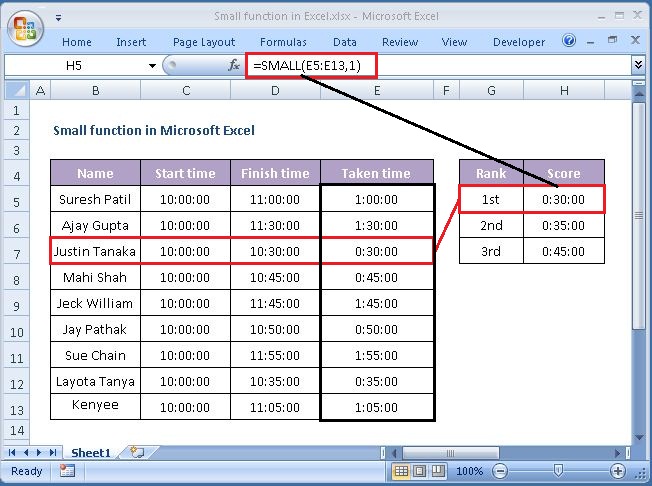
SMALL function

Summary

It's slightly more difficult to find the largest or smallest number in a column. =MAX() shows the largest value and =MIN shows the smallest value. But far more difficult is finding the second smallest value or fourth smallest value.

What now?
The SMALL function can be used to return the smallest, second smallest, third smallest and nth smallest values from a range.
For example, if all salespersons are given the same target, we can find out which one achieved the sales target in the shortest time for a given year.
The Small function is a built-in function in Excel that is categorized as a Statistical Function.

Purpose

Get the nth smallest value.

Return value

The SMALL function returns a Smallest numeric value.

What Does It Do ?

This function examines a list of values and picks the value at a user specified position in the list.

Syntax

=SMALL(array,k)

Parameters or Arguments

array - A range from which you want to return the nth smallest value
k - The position from the smallest to return.

Formatting

No special formatting is needed.

Usage notes

  • The SMALL Function can be used to find the first, second or the third lowest scores of a test. The SMALL function retrieves numeric values based on their position in a list when sorted by value.
  • If array is empty or non-numeric, the SMALL function will return the #NUM! error.
  • Text values are ignored by the SMALL in Excel and it only recognizes numerical values.
  • When the value of the k argument is less than 1 or greater than the number of values in the given array, the SMALL function will return the #NUM! error.
  • When the supplied k argument is non-numeric, the small function will return the #NAME? error.
  • The small function would return an error if there is an error value anywhere in your data set or array.

Please note that Microsoft Excel uses “k” instead of “n”. We are using “nth”, because it is more easier to understand the LARGE formula in Excel.

Let's look at some Excel Large function examples and explore how to use the Large function as a worksheet function in Microsoft Excel:

LARGE function

Summary

It's slightly more difficult to find the largest or smallest number in a column. =MAX() shows the largest value and =MIN shows the smallest value. But far more difficult is finding the second largest value and third largest value.

What now?
The LARGE function can be used to return the largest, second largest, third largest and kth largest values from a range.
The Large function is a built-in function in Excel that is categorized as a Statistical Function.

Purpose

Get the nth largest value.

Return value

The LARGE function returns a largest numeric value.

What Does It Do ?

This function examines a list of values and picks the value at a user specified position in the list.

Syntax

=LARGE(array,k)

Parameters or Arguments

array - A range from which you want to return the nth largest value
k - The position from the largest to return.

Formatting

No special formatting is needed.

Usage notes

  • The LARGE Function can be used to find the first, second or the third highest scores of a test. The LARGE function retrieves numeric values based on their position in a list when sorted by value.
  • If array is empty or non-numeric, the LARGE function will return the #NUM! error.
  • Text values are ignored by the LARGE in Excel and it only recognizes numerical values.
  • When the value of the k argument is less than 1 or greater than the number of values in the given array, the LARGE function will return the #NUM! error.
  • When the supplied k argument is non-numeric, the large function will return the #NAME? error.
  • The large function would return an error if there is an error value anywhere in your data set or array.

Please note that Microsoft Excel uses “k” instead of “n”. We are using “nth”, because it is more easier to understand the LARGE formula in Excel.
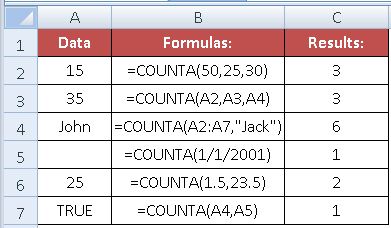
Let's look at some Excel CountA function examples and explore how to use the CountA function as a worksheet function in Microsoft Excel:

COUNTA function

Summary

When you enter data in Excel, you sometimes do it with a lot of cells left blank to fill them at a later stage when data is available. When you want to count the number of entries you made in a cell range, then you need a specific function in Excel to count only cells that are filled or Non-Blank. For this purpose, you need to use a special built-in function that is called the COUNTA function.
The COUNTA function in Excel counts the number, text, logical values(True or False), error values and empty text ("") of cells in a range that are not empty. COUNTA function ignores empty cells. In other words, the function counts the cells that are not empty or non-blank.
The COUNTA function is a built-in function in Excel that is categorized as a Statistical Function.
See the NOTE section below for more information.

Purpose

Count the number of non-blank cells.

Return value

A number representing non-blank cells.

What Does It Do ?

  • This function counts the number of numeric or text entries in a list.
  • It can be used either horizontally or vertically.
  • It function ignores blank cells.
  • Please keep in mind that Excel's COUNTA function counts cells containing any type of data including:
  1. Numbers
  2. Dates / times
  3. Text values
  4. logical values of TRUE and FALSE
  5. Error values like #VALUE or #N/A
  6. Empty text strings ("")

Syntax

CountA function has two syntax and hence they can be written in two different ways:

=COUNTA(value1,value2, ...) or
=COUNTA(Range1,Range2,Range3...)

Parameters or Arguments

Value: A numeric value or reference.
Range: A group of cells.

Formatting

No special formatting is needed.

Usage notes

The COUNTA function counts cells that contain numbers, text, logical values, error values, and empty text returned in formulas (""). COUNTA does not count cells that are completely empty. For example, to count non-empty cells in the range A1:A25:

=COUNTA(A1:A25)

Invisible characters

Be aware that COUNTA will also count cells that visually look empty, but actually contain invisible characters or an empty string ("") returned by a formula. You can check which cells are blank using Go To > Special > Blanks:
  1. Select a range
  2. Open Go To dialog (Control + G)
  3. Press "Special"
  4. Select "Blanks"

Notes:

  • We can enter up to 255 value arguments if we are using MS Excel 2007 or later. Earlier versions can handle 30 arguments only.
  • COUNTA function to counts cells contain that numbers, text, logical values, error values, and empty text ("").
  • COUNTA will also count hard-coded values. For example, =COUNTA("A",01,”Josh”,2.5,3,"") returns 6.
  • To count numeric values only, use the COUNT function.
  • If you want to count only cells that meet certain criteria, use the COUNTIF function or the COUNTIFS function.
  • The logical values TRUE and FALSE are counted.
  • Blank cells are not counted.

Excel Count Function Examples

The following spreadsheet shows six simple examples of the Excel Count function:

COUNTA function

The above examples show that each argument to the Min function can be supplied as a single value or cell reference, or as an array of values or cells.

Let's look at some Excel Count function examples and explore how to use the Count function as a worksheet function in Microsoft Excel:

COUNT function

Summary

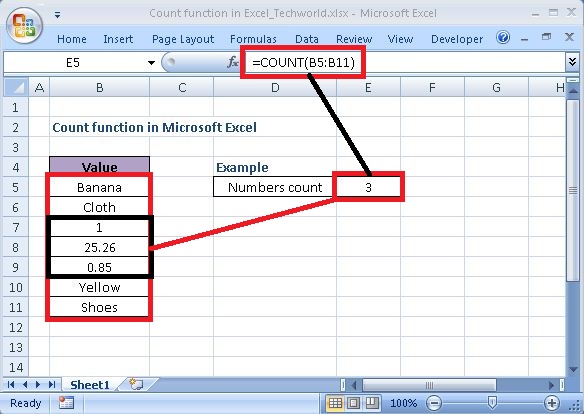
The Excel COUNT function returns the count of values that are numbers, generally cells that contain numbers. If a cell contains text, blank space or any other non-number, it is not counted.
Values can be supplied as constants, cell references, or ranges. Use the COUNT function to get the number of entries in a number field that is in a range or array of numbers.
The COUNT function is a built-in function in Excel that is categorized as a Statistical Function. It function ignores empty cells, the logical values TRUE and FALSE, and text values.

Purpose

Count the numbers.

Return value

A number representing a count of numbers.

What Does It Do ?

  • This function counts the number of numeric entries in a list.
  • It can be used either horizontally or vertically.
  • It function ignores empty cells, the logical values TRUE and FALSE, and text values.

Syntax

Count function has two syntax and hence they can be written in two different ways:

=COUNT(value1, value2, ...) or
=COUNT(Range1,Range2,Range3...)

Parameters or Arguments

Value: A numeric value or reference.
Range: A group of cells.

Formatting

No special formatting is needed.

Usage notes

The COUNT function counts the number of numbers in supplied values. Values can be items, cell references, or ranges. For example, =COUNT(1, 2, "apple") returns 2. And COUNT(A1:A10) will count the number of numeric values in the range A1:A10.

Notes:

  • Count can handle up to 255 additional values.
  • The function belongs to COUNT function family. There are five variants of COUNT functions: COUNT, COUNTA, COUNTBLANK, COUNTIF, and COUNTIFS.
  • If we wish to count logical values and text, we should use the COUNTA function. If we wish to count based on certain criteria, then we should use COUNTIF.
  • The arguments can contain or refer to a variety of different types of data, but only numbers are counted.
  • Since dates are stored as numbers, the COUNT function will include any cells that contain dates.
  • Error values or text values that cannot be coerced into numbers are not counted.
  • The logical values TRUE and FALSE are not counted.
  • Empty cells and text are not counted.

Excel Count Function Examples

The following spreadsheet shows six simple examples of the Excel Count function:

Count Function

The above examples show that each argument to the Min function can be supplied as a single value or cell reference, or as an array of values or cells.

Let's look at some Excel Max function examples and explore how to use the Max function as a worksheet function in Microsoft Excel:

MIN function

Summary

The Excel MIN function returns the smallest numeric value from the numbers provided. This function helps us to locate what the minimum data is located in the spreadsheet or selected range.
The MIN function is a built-in function in Excel that is categorized as a Statistical Function. It function ignores empty cells, the logical values TRUE and FALSE, and text values.
In financial analysis, MIN can be useful in calculating the lowest score, the Minimum time, the lowest expense or revenue amount, minimum salary of the employee, etc.

Purpose

Get the smallest value.

Return value

The smallest value in the array.

What Does It Do ?

  • This function helps us to locate what the minimum data is located in the spreadsheet or selected range.
  • It can be used either horizontally or vertically.
  • The numbers can be in single cells, ranges are from other functions.

Syntax

Min function has two syntax and hence they can be written in two different ways:

=MIN(Num1,Num2,...) or
=MIN(Range1,Range2,Range3... through to Range30)

Parameters or Arguments

Num: A numeric value or reference.
Range: A group of cells.

Formatting

No special formatting is needed.

Usage notes

The MIN function can be used to return the smallest value from a set of data. For example, the fastest time in a race, the lowest temperature, or the smallest sales number. Arguments can be provided as constants, or as cell references or ranges, for example:

=MIN(A1:A10)
=MIN(C5,C6,C7)
=MIN(5,10,15,20)

Notes:

  • The MIN function ignores empty cells.
  • The MIN function in current versions of Excel accepts up to 255 arguments. If arguments contain no numbers, MIN returns 0.
  • Arguments can be provided as numbers, names, arrays, or references that contain numbers.
  • The MIN function ignores TRUE and FALSE values, and numbers entered as text, unless they are typed directly into the list of arguments.
  • MIN function through #VALUE! Error if any of the supplied values are non-numeric.
  • If MIN function does not have any arguments than it will return the 0 as output.
  • Empty cells, logical values, or text in the array are ignored.

Excel Min Function Examples

The following spreadsheet shows three simple examples of the Excel Min function:

Min Function   Min Function

The above examples show that each argument to the Min function can be supplied as a single value or cell reference, or as an array of values or cells.

Let's look at some Excel Max function examples and explore how to use the Max function as a worksheet function in Microsoft Excel:

MAX function

Summary

The Excel MAX function returns the largest numeric value from the numbers provided. This function helps us to locate what the maximum data is located in the spreadsheet or selected range.
The MAX function is a built-in function in Excel that is categorized as a Statistical Function. It function ignores empty cells, the logical values TRUE and FALSE, and text values.
In financial analysis, MAX can be useful in calculating the highest score, the fastest time, the highest expense or revenue amount, etc.

Purpose

Get the largest value.

Return value

The largest value in the array.

What Does It Do ?

  • This function helps us to locate what the maximum data is located in the spreadsheet or selected range.
  • It can be used either horizontally or vertically.
  • The numbers can be in single cells, ranges are from other functions.

Syntax

Max function has two syntax and hence they can be written in two different ways:

=MAX(Num1,Num2,...) or
=MAX(Range1,Range2,Range3... through to Range30)

Parameters or Arguments

Num: A numeric value or reference.
Range: A group of cells.

Formatting

No special formatting is needed.

Usage notes

The MAX function can be used to return the largest value from a set of data. For example, the slowest time in a race, the highest temperature, or the top sales number. Arguments can be provided as constants, or as cell references or ranges, for example:

=MAX(A1:A10)
=MAX(C5,C6,C7)
=MAX(5,10,15,20)

Notes:

  • The MAX function ignores empty cells.
  • The MAX function in current versions of Excel accepts up to 255 arguments. If no numbers in arguments contain, MAX returns 0.
  • Arguments can be provided as numbers, names, arrays, or references that contain numbers.
  • The MAX function ignores TRUE and FALSE values, and numbers entered as text, unless they are typed directly into the list of arguments.
  • MAX function through #VALUE! Error if any of the supplied values are non-numeric.
  • If MAX function does not have any arguments than it will return the 0 as output.

Excel Max Function Examples

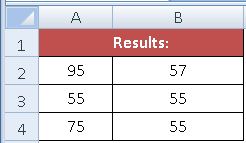
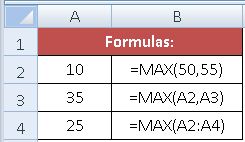
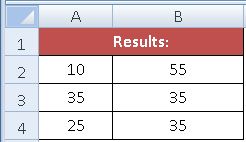
The following spreadsheet shows three simple examples of the Excel Max function:

Max Function   Max Function

The above examples show that each argument to the Max function can be supplied as a single value or cell reference, or as an array of values or cells.